
How to use RankZuno
A practical, step-by-step guide to setting up the plugin, running your first audit, fixing issues safely and using every tool, from redirects to internal links.
Screenshots show RankZuno 1.0.0 on a demo site with sample content. Menu names match the plugin as released.
Quick start
-
Install the plugin
Upload the ZIP in Plugins → Add New Plugin → Upload Plugin, then activate it.
-
Answer five setup questions
The guided setup opens by itself. Nothing on your site changes until the last step.
-
Run your first audit
Go to Rankzuno → Overview and click Run SEO scan. It runs in the background.
-
Fix the top issue
Click the suggested action, check the preview, then apply. You can undo it later.
Install and activate
Plugins → Add New Plugin
RankZuno works on WordPress 6.4 or newer with PHP 7.4 or newer. You need an administrator account to upload plugins. RankZuno does not need an account on this website or a licence key.
- Download the free ZIP file from this website.
- In your WordPress dashboard, open Plugins → Add New Plugin and click Upload Plugin.
- Choose the ZIP file, click Install Now, then Activate Plugin.
- A new Rankzuno menu appears in the dashboard sidebar.
Tip Using another SEO plugin? Keep it active for now. RankZuno starts in audit-only mode and adds nothing to your pages until you tell it to.
Back to topRun the guided setup
Opens automatically after activation
Setup takes a few minutes and has five short steps. Nothing changes on your site until the last step, and you can adjust every answer later in Settings.
- Your site: choose the kind of site you run, such as a blog, business or shop.
- Publisher: say whether an organization or a person is behind the site, and add a name and logo or photo.
- Search appearance: pick a title separator and write your homepage title and description.
- Other SEO plugins: RankZuno lists any it finds, such as Yoast SEO, Rank Math or All in One SEO, and whether their data can be imported.
- Finish: choose how RankZuno should start (see the next section) and review the summary.
Choose audit only or managed output
Rankzuno → Settings → General
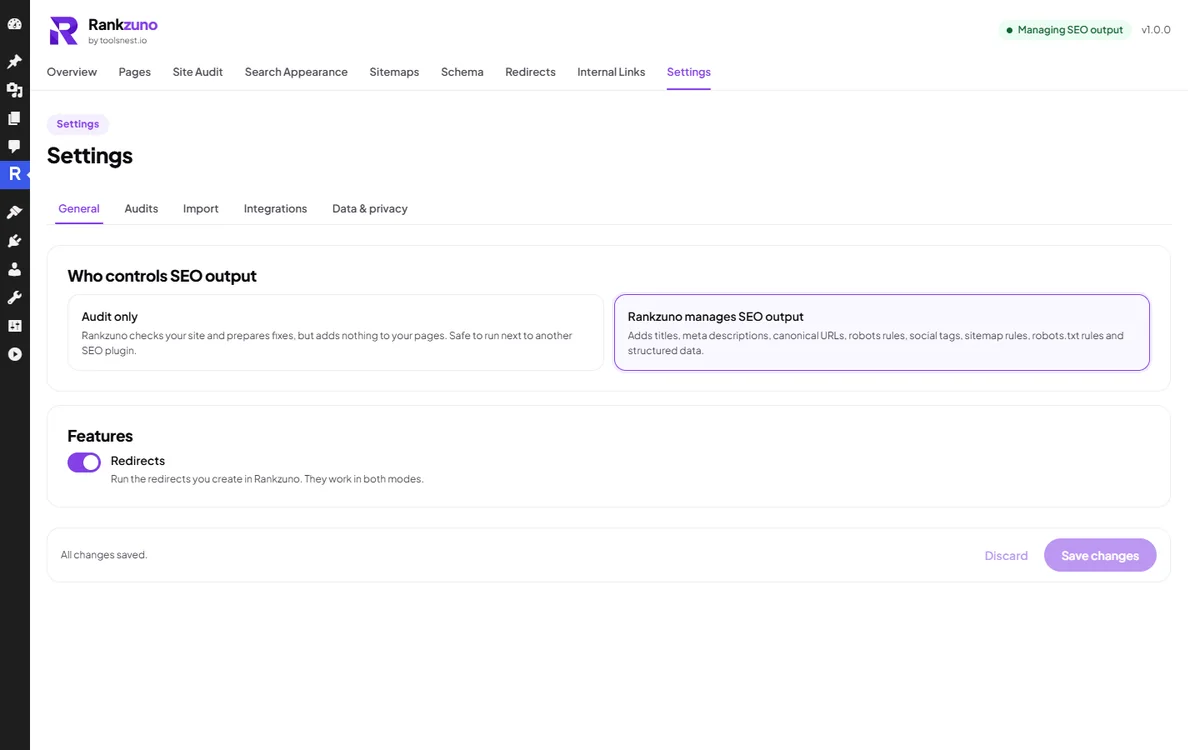
RankZuno has two modes. You can switch between them at any time, and every switch is recorded in the change history.
- Audit only (recommended to start): RankZuno checks your site and prepares fixes, but adds nothing to your pages. It is safe to run next to another SEO plugin.
- Manage SEO output: RankZuno adds titles, meta descriptions, canonical URLs, robots rules, social sharing tags, sitemap rules, robots.txt rules and structured data.
- To switch, open Settings → General and click Start managing SEO output. RankZuno lists exactly what it will add before you confirm.
Tip RankZuno never deactivates other plugins. If you are moving from another SEO plugin, import its data first (see "Switch from another SEO plugin"), deactivate it yourself, then switch modes.
Run an audit and read the results
Rankzuno → Overview and Rankzuno → Site Audit
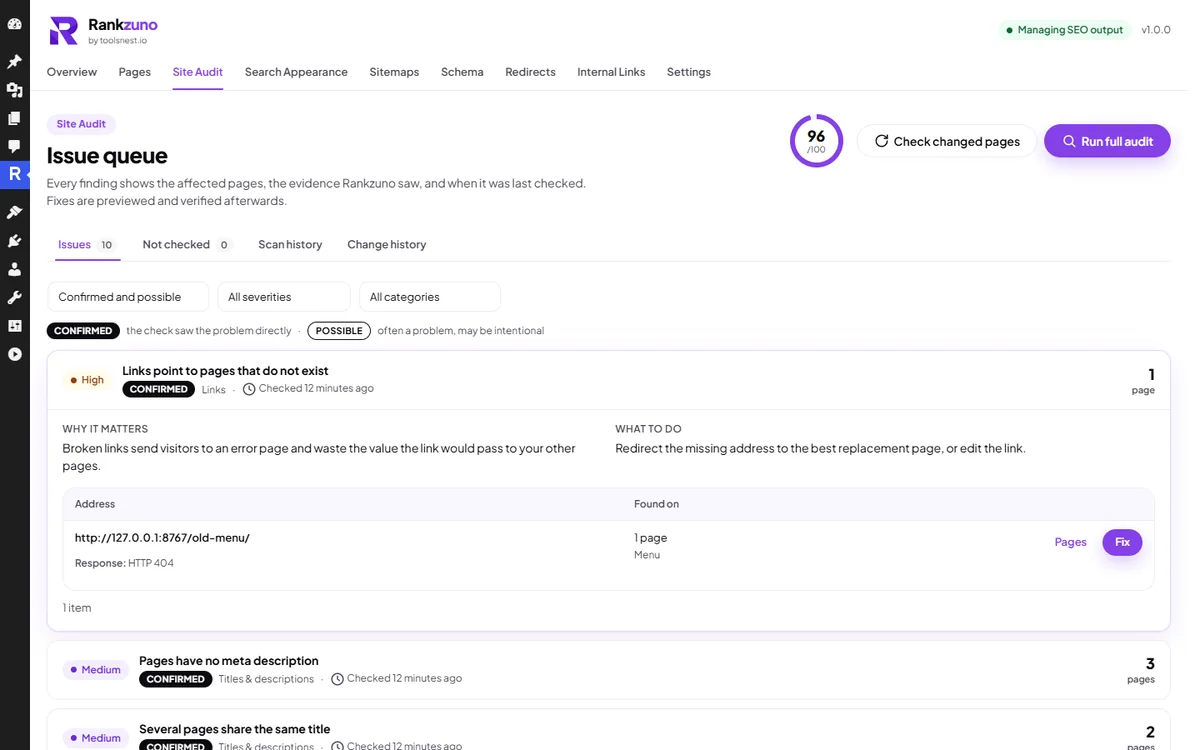
The audit checks every published page against 34 SEO checks. It runs in small background batches, so your site stays fast and you can keep working.
- Open Rankzuno → Overview and click Run SEO scan.
- Read the three cards: SEO health, items scanned and open issues. The health score is the share of completed checks that passed, weighted by severity. It does not predict Google rankings.
- Work down the issue list from the top. It is sorted by priority: critical, high, medium, then low.
- Open Site Audit and click any issue to see why it matters, what to do, and exactly which pages or addresses are affected.
- After you make changes, click Check changed pages to re-check only what changed, instead of running a full audit again.
Tip Confirmed means the check saw the problem directly. Possible means it is often a problem but may be intentional, so review it before changing anything. The Not checked tab explains any check that could not run.
Fix issues with a preview
Rankzuno → Overview → next action
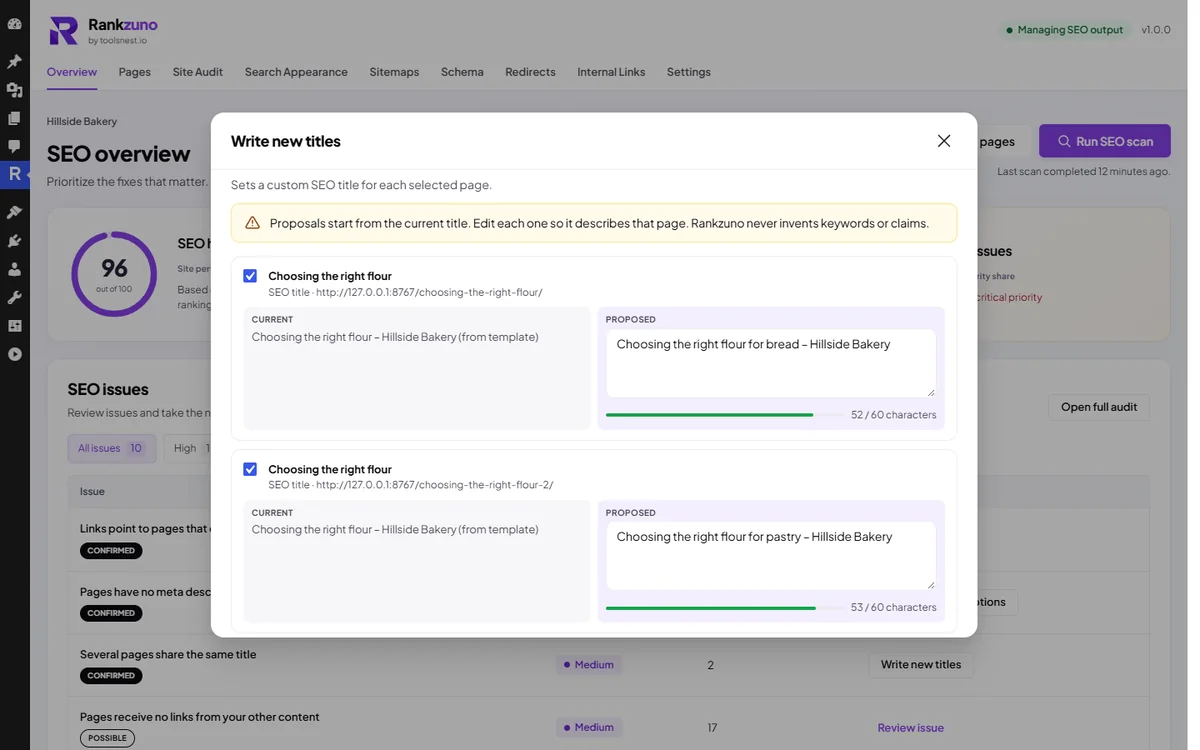
Many issues have a one-click fix, such as Write meta descriptions, Write new titles or Redirect the missing address. You always see the change before it happens.
- Click the action button next to an issue.
- Compare the current and proposed value for each page. Edit any proposal, or untick a page to skip it.
- Click Apply. RankZuno saves the change, records it, and checks the page again.
- The issue is marked resolved only when the new check confirms it.
Tip Proposals start from your own content, such as the current title or the opening text. RankZuno never invents keywords or claims, so read each one and make it describe the page.
Undo any change
Rankzuno → Site Audit → Change history
Changes made from RankZuno’s own screens, whether from a fix, the bulk editor, an import, a redirect or a settings change, are saved as batches you can roll back. SEO fields edited in the post editor are saved with the post and are not part of this history.
- Open Site Audit and choose the Change history tab.
- Find the batch by its date and description, and review what it changed.
- Click Roll back to restore the previous values.
Tip If a value was edited again after the change, RankZuno lists it as changed since and keeps your newer edit instead of overwriting it.
Back to topEdit SEO while you write
Post and page editor
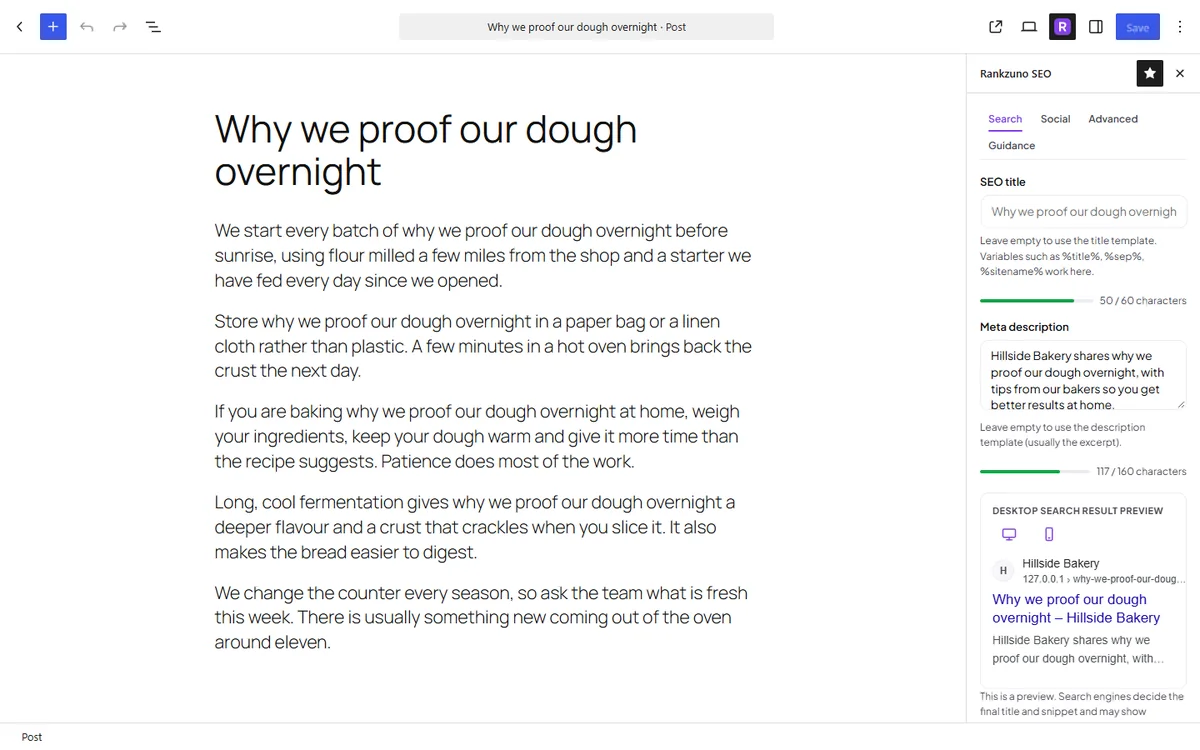
Each post and page has its own SEO settings. Leave a field empty to use your template from Search Appearance.
- In the block editor, click the R icon in the top toolbar to open the Rankzuno SEO panel.
- Search tab: write the SEO title and meta description. The bars turn green at a good length, and the preview shows how the result may look on desktop and mobile.
- Social tab: set the title, description and image used when the page is shared.
- Advanced tab: set a canonical URL, search engine indexing, nofollow, no archive, no snippet, or exclude the page from the XML sitemap.
- Guidance tab: see content tips for the page, with an optional focus keyphrase.
Tip Using the Classic Editor? The same fields appear in a Rankzuno SEO box below the editor, and on category and tag screens. Edits made here are saved with the post, so use WordPress revisions or your own notes if you need to go back.
Edit many pages at once
Rankzuno → Pages
The bulk editor is the fastest way to tidy titles, descriptions and image alt text across a whole site.
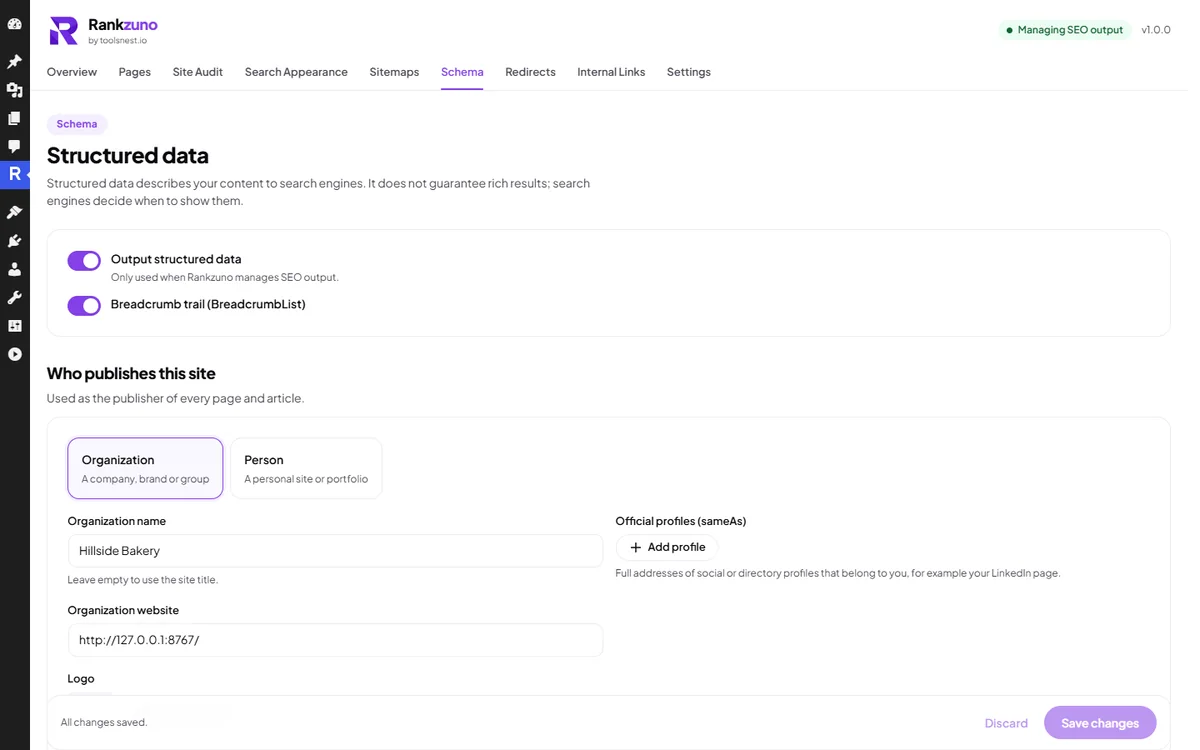
- Metadata tab: filter by content type or issue, then edit SEO titles, meta descriptions, indexing and sitemap inclusion directly in the table.
- Click Review changes to see everything you edited, then save. Nothing is saved before you review.
- Image alt text tab: find images without alternative text and describe them in one place.
Tip Every bulk save is one batch in the change history, so you can roll the whole batch back.
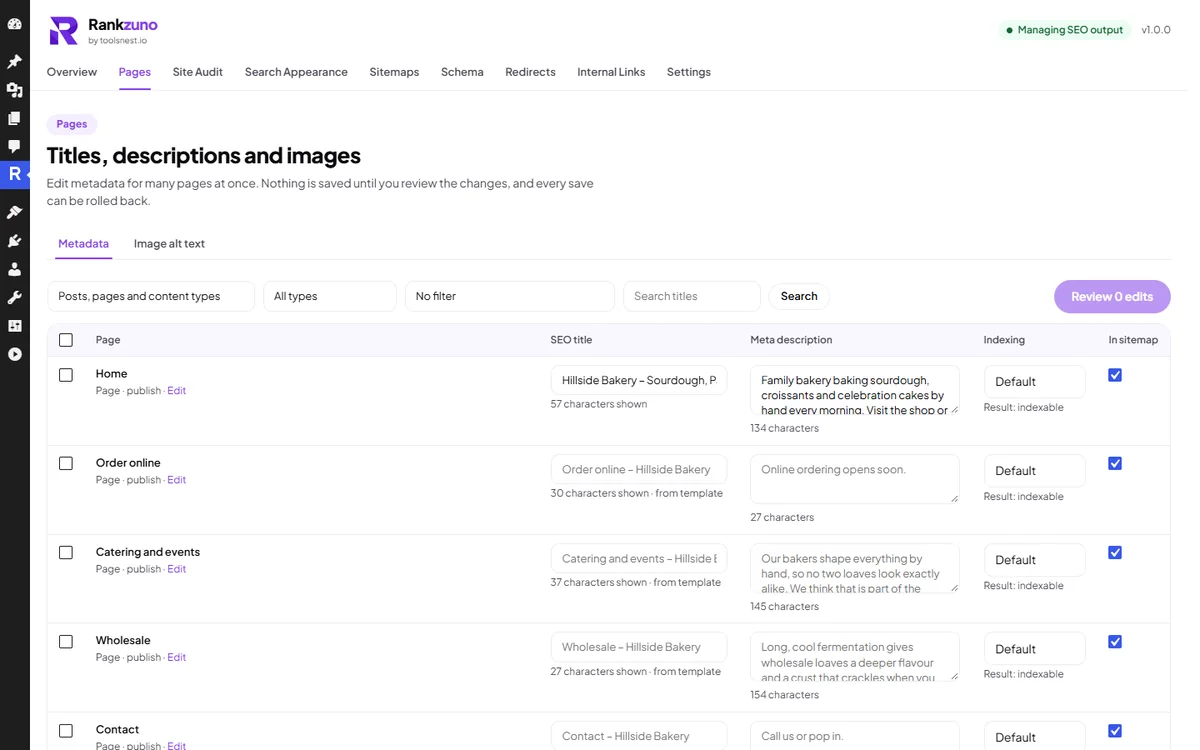
Set title and description templates
Rankzuno → Search Appearance
Templates fill in titles and descriptions for every page that does not have its own, so new content is covered automatically.
- Pick the separator shown between the page title and your site name.
- Set the homepage title and description. If your homepage is a static page, that page’s own SEO values take priority.
- Set templates for each content type and taxonomy, and choose which ones search engines should not index.
- Use variables such as %title%, %sitename%, %sep%, %tagline%, %excerpt%, %category% and %year%. The preview updates as you type.
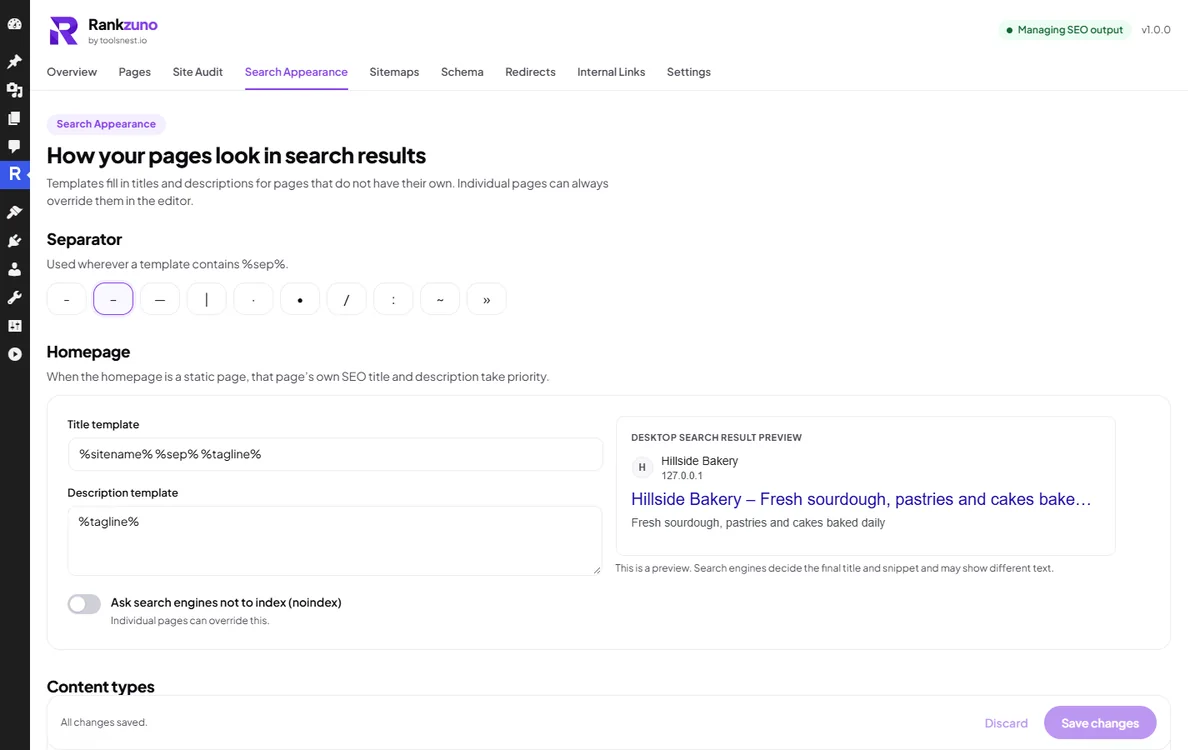
Sitemaps and robots.txt
Rankzuno → Sitemaps
RankZuno builds on the sitemap that WordPress already provides, at /wp-sitemap.xml. Requests for /sitemap.xml are redirected to it.
- Choose which content types and archives appear in the sitemap. Pages set to noindex are always left out.
- Click Check sitemap now to confirm it loads, then Open sitemap to see it.
- Add extra robots.txt rules if you need them. RankZuno warns you if a physical robots.txt file would override them.
- Submit your sitemap address in Google Search Console and Bing Webmaster Tools.
Tip robots.txt stops crawling, not indexing. To keep a page out of search results, set it to noindex in the editor panel and let it be crawled.
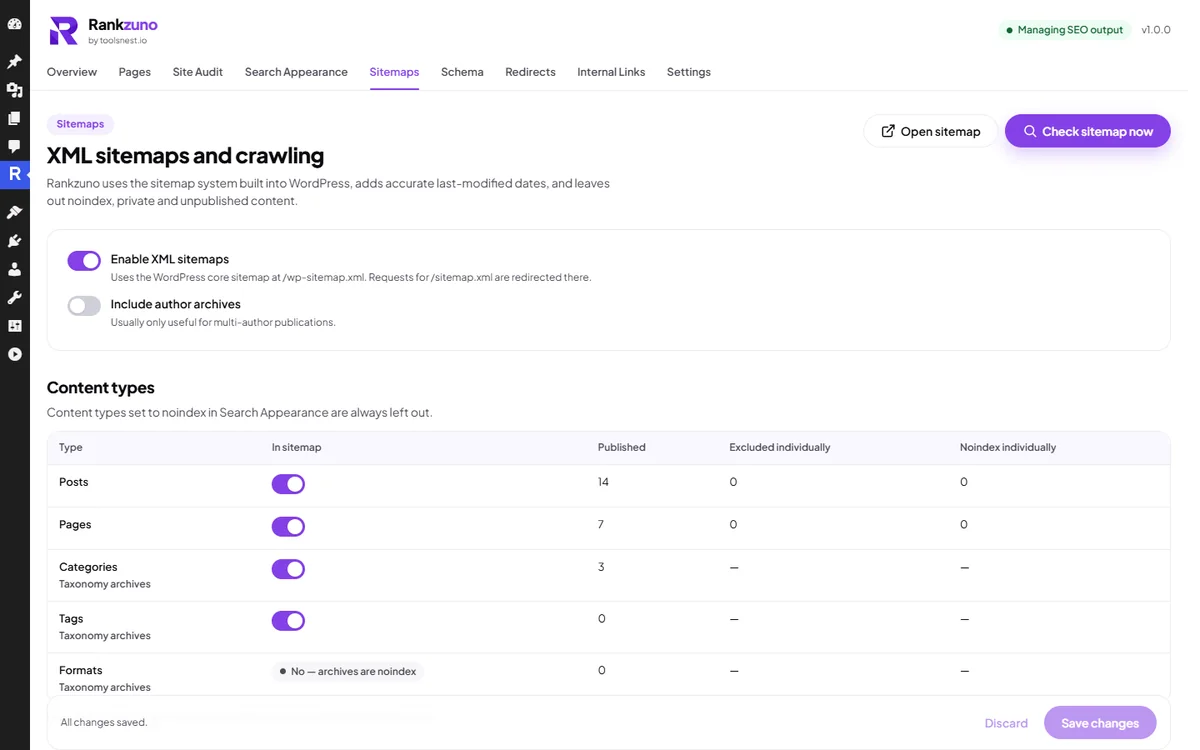
Add structured data
Rankzuno → Schema
Structured data describes your content to search engines. It can make you eligible for richer results, but it does not guarantee them.
- Keep Output structured data and Breadcrumb trail switched on.
- Under Who publishes this site, choose Organization or Person, then add the name, website, logo and official profiles such as LinkedIn.
- Posts, pages, local businesses and WooCommerce products get the right type automatically from your real content.
- Test a page with Google’s Rich Results Test after you switch to managed output.
Tip Structured data is only added to your pages when RankZuno manages SEO output.
Redirects and 404 errors
Rankzuno → Redirects
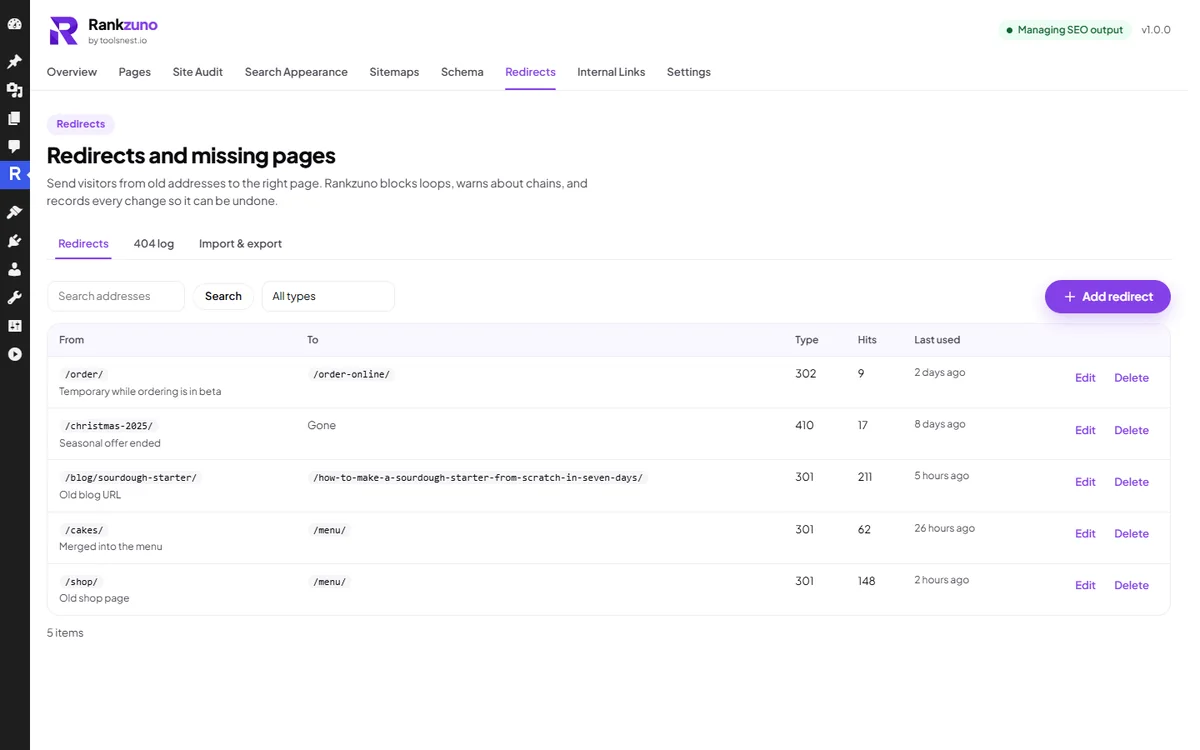
Send visitors from old addresses to the right page, and find the addresses people reach that no longer exist. Redirects work in both modes.
- Click Add redirect, enter the old address and the new one, and choose the type: 301 for a permanent move, 302 or 307 for temporary, 308 for permanent that keeps the request method, or 410 for content that is gone for good.
- RankZuno blocks redirect loops and warns you about chains before you save.
- Open the 404 log to see missing addresses visitors reached, how often, and where from. Redirect the ones that matter.
- Use Import & export to move redirects in or out as a CSV file, with a preview before anything is imported.
Connect your content with internal links
Rankzuno → Internal Links
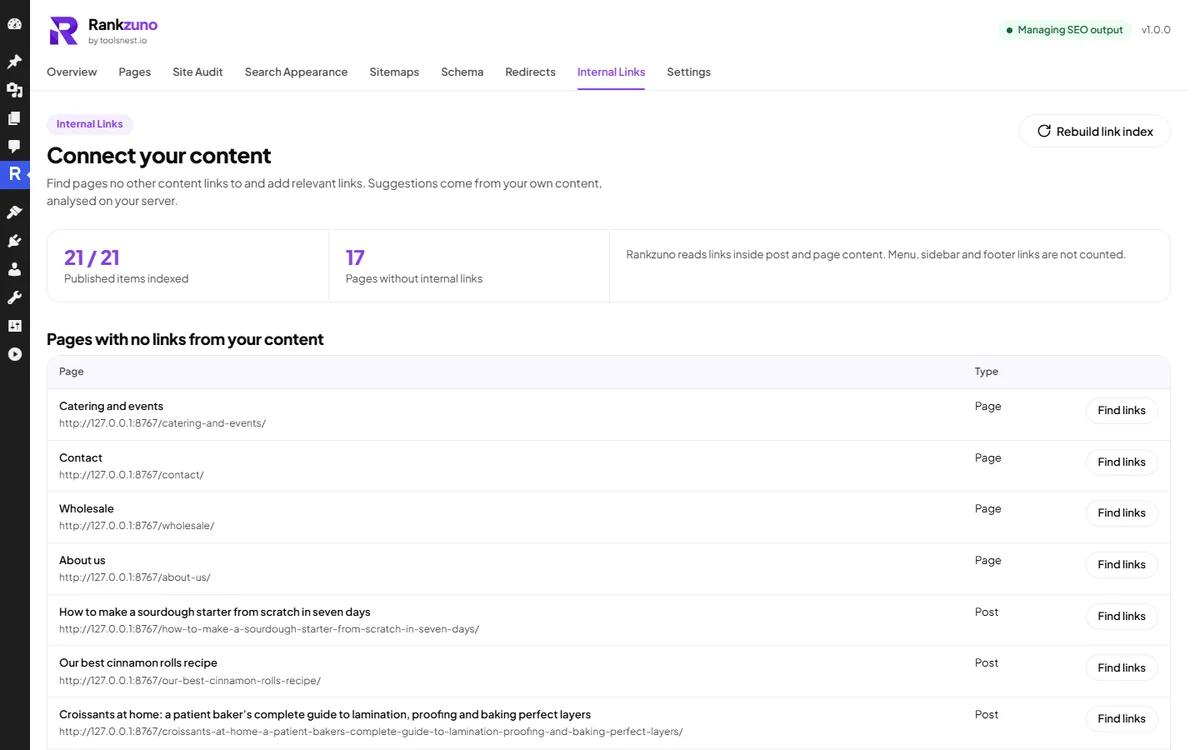
Pages that no other page links to are harder for visitors and search engines to find. RankZuno lists them and suggests where to link from.
- Review Pages with no links from your content.
- Click Find links next to a page. RankZuno finds posts that already mention it and suggests the anchor text.
- Click Add link and save post to insert the link, or open the post and add it yourself.
- Click Rebuild link index after large content changes.
Tip Links are added only to standard post content. Pages built with page builders such as Elementor are checked but never edited automatically.
Switch from another SEO plugin
Rankzuno → Settings → Import
Bring post titles, descriptions, canonical URLs, robots settings and social data from Yoast SEO, Rank Math or All in One SEO, plus category and tag SEO data from Yoast SEO and Rank Math, and Rank Math redirects.
- Keep RankZuno in audit-only mode and leave the old plugin active.
- Open Settings → Import, choose the source, and click Run a dry run. Nothing is changed during a dry run.
- Review the import preview and field mapping, then click Import. Items listed as not supported stay in the old plugin, for example Rank Math schema templates, AIOSEO global settings, and the redirects in Yoast SEO Premium or AIOSEO Pro. Export those redirects as CSV and use Redirects → Import & export.
- Check a few pages, deactivate the old plugin yourself, then switch to Manage SEO output.
Tip Changed your mind? Use Undo import to reverse the whole import.
Back to topA simple routine
Ten minutes a week keeps most sites in good shape.
-
Every time you publish
Write the SEO title and meta description in the editor panel and check the search preview.
-
Every week
Click Check changed pages on the Overview and fix any new high or critical issue.
-
Every month
Run a full audit, redirect the most visited addresses in the 404 log, and link to pages with no internal links.
-
Before big changes
Run an audit before and after a new theme, plugin or redesign, and compare the results in Scan history.
Stuck on a step?
Check the FAQ for quick answers, or ask us directly. New to SEO? The free ToolsNest SEO Academy explains the basics.
Ready to try it on your site?
Free forever, no account, and every fix can be undone.
Download RankZuno free